Guide
How to make a wedding seating chart on your iPhone
What you need
- Your guest list, in any form: a spreadsheet, a Zola or The Knot export, your contacts or a list in Notes.
- The table sizes from your venue: 60-inch rounds seat 8 and 72-inch rounds seat 10. The table calculator works out how many you need.
- An app. These steps use Headtable, which runs on iPhone and iPad with iOS 17 or later and needs no account.
Step 1: Add your guests
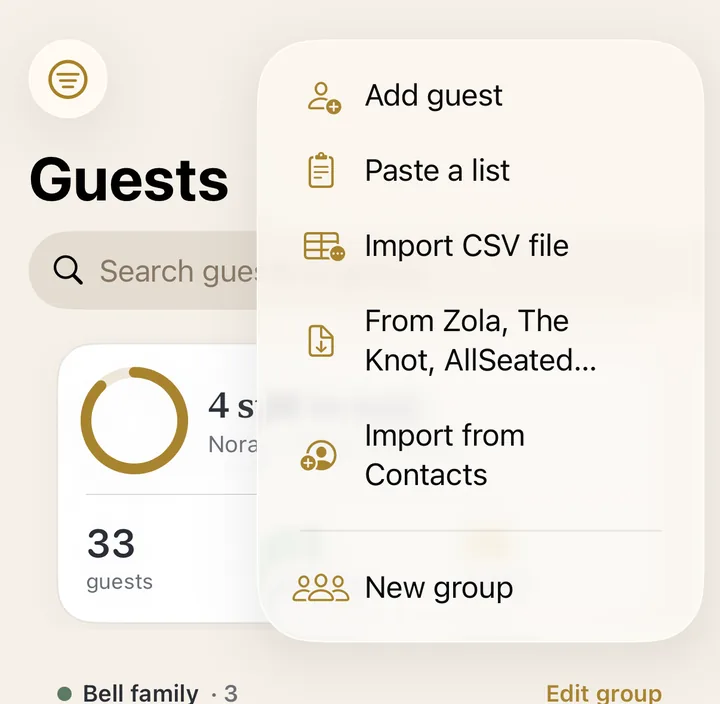
Open the Guests tab and tap +. Choose Paste a list to paste names from Notes or a message, Import CSV file for a spreadsheet, From Zola, The Knot, AllSeated for a wedding site's export, or Import from Contacts. Put couples and families in one group so they stay together.
Step 2: Set up the room
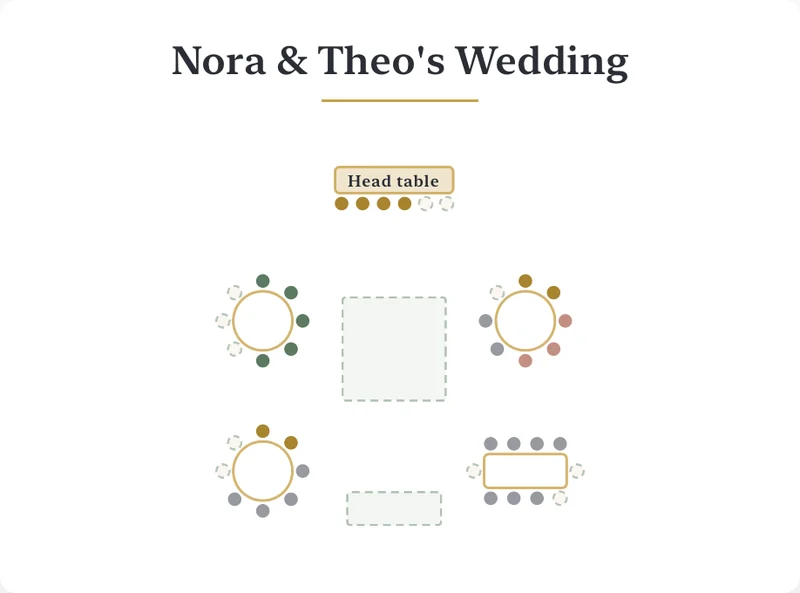
On the Canvas tab, tap Set up the room and enter how many guests are coming and how many sit at each table. The tables appear. Add a head or sweetheart table and the dance floor, bar or DJ booth, and drag everything where it stands at your venue. If you know the room's size, enter it to plan to scale: Headtable flags tables that sit too close.
Step 3: Seat everyone
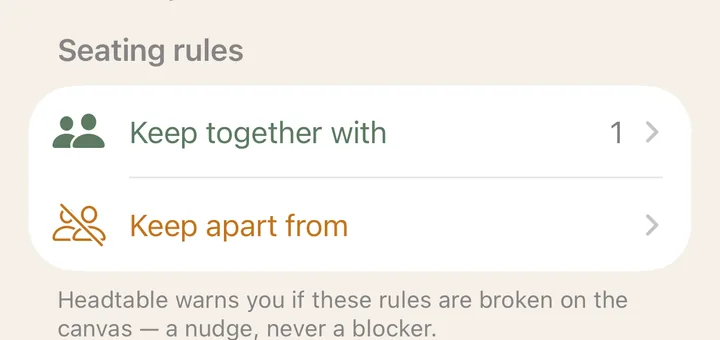
Drag a guest from the unseated tray onto a table, or tap Auto-arrange to fill the tables and then fine-tune by hand. Open a guest to add Keep together with and Keep apart from rules: the canvas flags any table that breaks one, and Auto-arrange respects them.
Step 4: Collect RSVPs
In the Invitations tab, send each guest or household a private link by message. Guests reply in their browser, without an app or account: coming or not, their meal, allergies and a plus-one if you allow it. Replies land on your guest list and free the seats of anyone who can't come. The free version includes your first 8 replies; Headtable Pro includes every one.
Step 5: Print and share
In the Export tab, save the seating chart as a PDF or image on A4 or US Letter, and the guest list as a CSV. Print it from your iPhone or send it to your venue coordinator and caterer. Headtable Pro adds an alphabetical escort list, place cards, table numbers, an 18×24 in poster and a find-my-seat QR code for the door.
On the day
- Send each guest their seat in a personal text or email: "You're at Table 4".
- Use day-of check-in to tick guests off at the door, from one phone or several.
- Moved someone at the last minute? With Pro, the find-my-seat page updates as soon as you change the plan.
Planning with your partnerWith Headtable Pro you can invite your partner, a parent or your planner to edit the same plan from their own iPhone, even on a different Apple Account. Up to four people; joining is free.
Without an app
For a small party, you can type a chart in Numbers or Notes, one heading per table. Or open the free seating chart templates in Safari and print a chart, table numbers and place cards. Either way you redo it by hand when an RSVP changes, which is where an app saves the most time. Not sure which app? See the comparison of wedding seating chart apps.
Plan the whole chart on your phone.
 Download on theApp Store
Frequently asked questions
Can I make a wedding seating chart on my iPhone?
Yes. A seating chart app such as Headtable lets you add your guests, set up the tables, seat everyone by dragging or with Auto-arrange, and export the chart as a PDF to print. Headtable is free for up to 50 seated guests.
What is the best free seating chart app for iPhone?
Headtable is free for up to 50 seated guests with an unlimited guest list, seating rules and the chart as a PDF; Pro is a one-time purchase. Zola's seating chart is free for up to 15 guests and pulls in your Zola guest list. Our comparison covers the other options.
Can I import my guest list from Zola or The Knot on iPhone?
Yes. Export a CSV from Zola or The Knot, then in Headtable open Guests, tap + and choose From Zola, The Knot, AllSeated. Headtable reads name, party, RSVP, meal, dietary, phone and email columns.
Can my partner work on the seating chart too?
Yes. With Headtable Pro you can invite up to three others to edit the same plan from their own iPhone or iPad, even on a different Apple Account. Joining a shared plan is free.
How do I print a seating chart from my iPhone?
In Headtable, open Export and save the seating chart as a PDF on A4 or US Letter. Print it from the share sheet, or send the PDF to a print shop or your venue.